Pickups
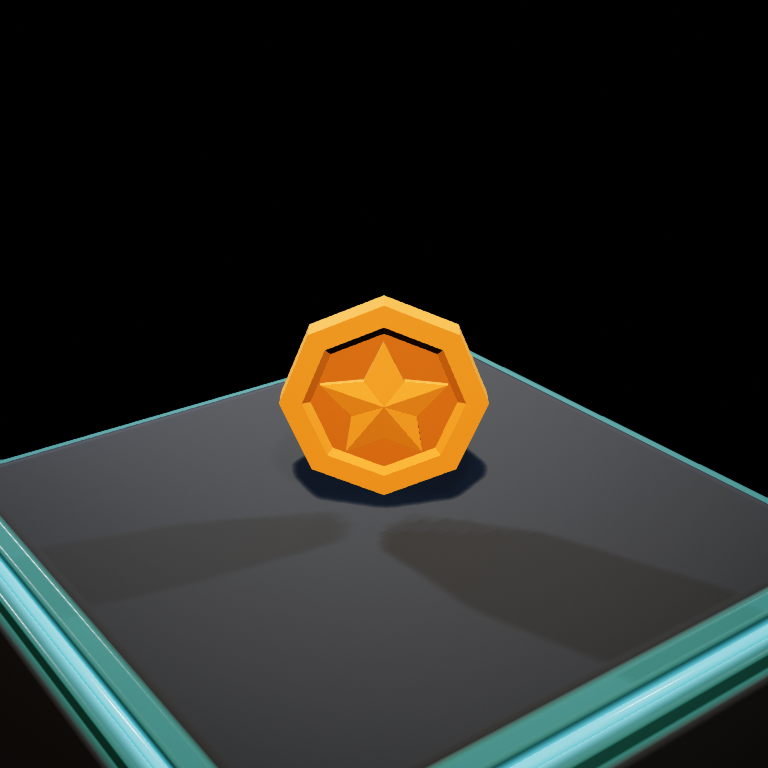
Coin
Adds score.
Editor settings: Select the cube face. No separate item direction or color setting.
BUILD IT. SOLVE IT. SHARE IT.
Your guide to building Gravity Breach levels, from a first route to a complete puzzle.
Place and edit objects ↓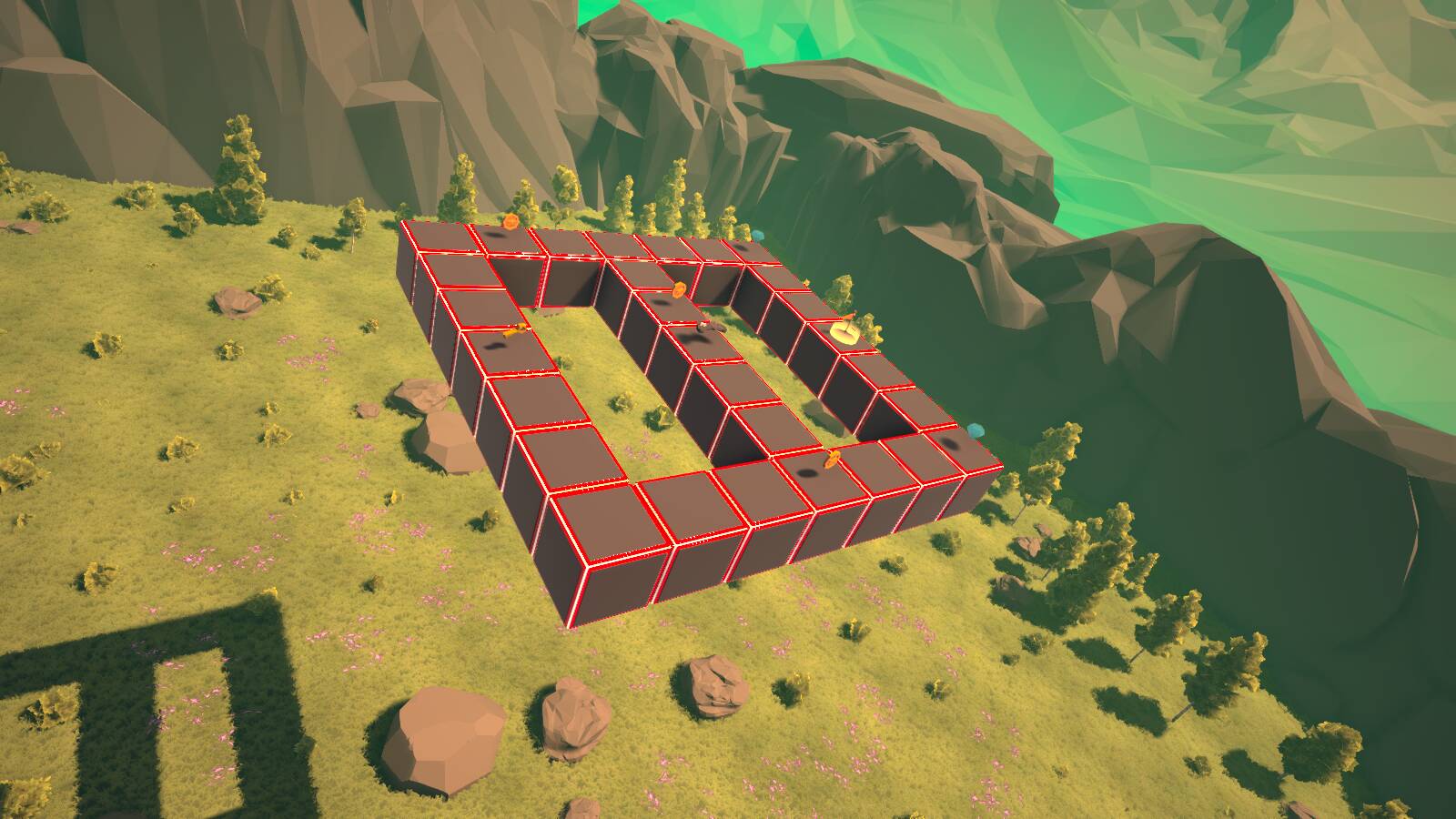
Controls, object settings, saving and validation for the in-game level editor.
Open the level editor from the game menus. Press Tab to show or hide help. The help changes with the current mode: placing an object, editing a cube, or editing a face item.
These are the default keyboard and mouse bindings. If you have changed your controls, use the bindings shown in the game.
| Control | Action |
|---|---|
| W / A / S / D | Move the placement position, or change the selected item, color or direction in the current editing mode. Follow the help labels. |
| Q / E | Cycle the available cube or object types. |
| F | Confirm placement or enter the next editing mode. |
| R | Return to the previous editing mode. |
| T | Delete the current target. |
| Space | Toggle the selected face’s corruption field independently of its item, where available. |
| C | Open the cube appearance controls. |
| Tab | Show or hide context-sensitive help. |
| Esc | Open the editor menu. |
| Control | Action |
|---|---|
| Arrow keys | Look left, right, up or down. |
| Right mouse button | Use the free camera. |
| Mouse wheel | Zoom in or out. |
| Left mouse button | Align the camera. |
| Middle mouse button | Save the preview camera position. |
For controller bindings, show the in-game help. The default help control is View / Back; confirm and back use the bottom and right face buttons.
Move the placement position, choose the cube or object type with Q / E, and press F to place it. Target an existing cube and press F to enter its editing modes. Use R to return to the previous mode.
For cube-face items, select the intended face and cycle its item. A cube’s side and underside faces can carry items too. The selected face determines the object’s gravity orientation.
The Next Color / Previous Color controls are context-sensitive: for some objects they select a direction or type rather than a decorative color. Check the preview and help labels while the object is selected.
| Object | Available setting |
|---|---|
| Start | Four facing directions on the selected face. |
| Directional bouncer | Four launch-arrow directions on the selected face. |
| Magnet | Selectable orientation on the selected face. |
| Phase and destruction switches | Four channel colors; match the switch channel to the target cubes. |
| Phase and destructible cubes | Four target channel colors, separate from the cube’s decorative palette. |
| Balloon-carried crate | Question-mark crate with selectable crate color and a separate balloon color selector. |
| Drone-carried crate | Always carries a red exclamation-mark crate. Its crate style and color are fixed. |
| Cube appearance | Base, trim, glow and groove colors, plus animation settings, through C. |
The balloon and its crate are one placed setup. The drone carrier and its crate are also one placed setup. They are not separate items that need to be joined manually. Crates are placed as objects in space rather than as ordinary face pickups.
The face’s corruption field is a separate Space toggle. It can be enabled on a face that also contains an item. It is the field removed by the cleaner pickup.
A level needs a start, a finish and at least one key to enter validation. Collect all required keys to activate the finish. Use one to five keys. Fix disks are a separate objective: collecting all required fixes activates the apples.
| Item | Effect |
|---|---|
| Shield | Adds seven seconds of protection to the remaining duration. |
| Ammo / attack | Adds seven seconds of attack ability to the remaining duration. |
| 2× score | Adds seven seconds of double scoring to the remaining duration. |
| Stopwatch | Adds seven seconds of level-timer pause. |
| Slowdown | Applies half-speed player time dilation for a timed effect; pickups add seven seconds when the effect applies. Shield prevents the effect. |
| Big-jump pad | Has a two-second reactivation delay and also waits for the player to leave its trigger. |
Press C to edit the cube’s base, trim, glow and groove colors. The appearance controls also provide color animation type, speed and delay. Decorative colors do not replace the matching channel colors used by switches.
Use the editor menu to select the Default Music. Position the camera, press the middle mouse button to set the level preview, then save.
Press Esc to open the editor menu. Use Change Level Name, then Save Level. Save Level As New creates a separate version.
Choose Validate Level and complete the level through the game’s validation flow. Having the required objects only makes validation available; it does not establish that the level can be completed.
Changes can clear validated status. Save and validate the latest version before sharing it.
For Steam Workshop, choose Upload Level and follow the prompts. Wait for Uploading Successful!. If the game reports Uploading Failed!, retain the local save and check the Steam connection before retrying.
| Problem | Check |
|---|---|
| Movement keys change items or colors. | You are in an editing mode. Press R to step back and check the help. |
| An item appears on the wrong face. | Select the intended face before changing its item. |
| A launch arrow faces the wrong way. | Change the item’s direction using the context-sensitive controls. Changing the camera does not change its launch direction. |
| A switch does not affect the expected cube. | Check both the cube type and the matching channel color. Decorative surface color is separate. |
| Placement is refused. | Check nearby geometry and the clearance required by the selected object. |
| Validation is unavailable. | Check for a start, a finish and at least one key, and read the game’s warning. |
| An apple is inactive. | Collect all required fix disks first. |
| The preview is wrong. | Set the preview camera again with the middle mouse button, then save. |
KNOW YOUR BUILDING BLOCKS
Recognize the pickups, movement tools, switches, hazards, and geometry used in your levels. Pictures show complete game actors on or above a cube, including attached crate carriers. The start marker uses its editor appearance; the invisible cube is shown revealed. Each card lists its available editor settings.
Adds score.
Editor settings: Select the cube face. No separate item direction or color setting.
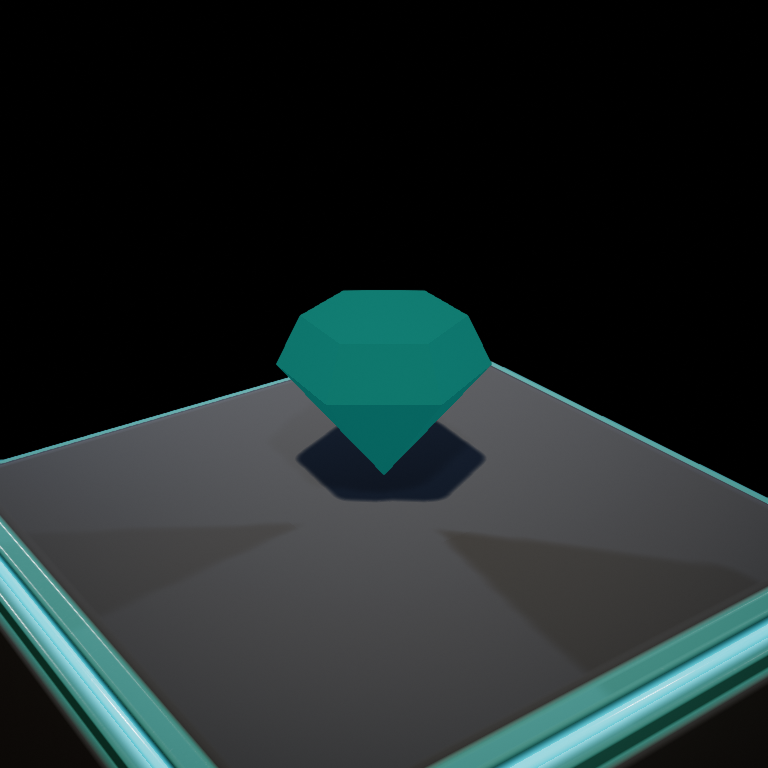
Adds score.
Editor settings: Select the cube face. No separate item direction or color setting.
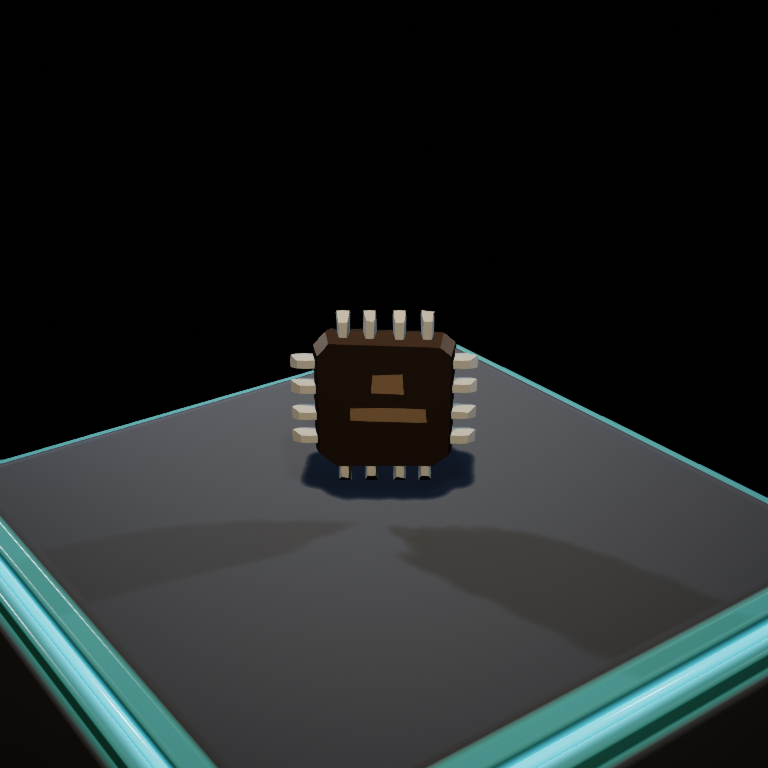
Adds score.
Editor settings: Select the cube face. No separate item direction or color setting.
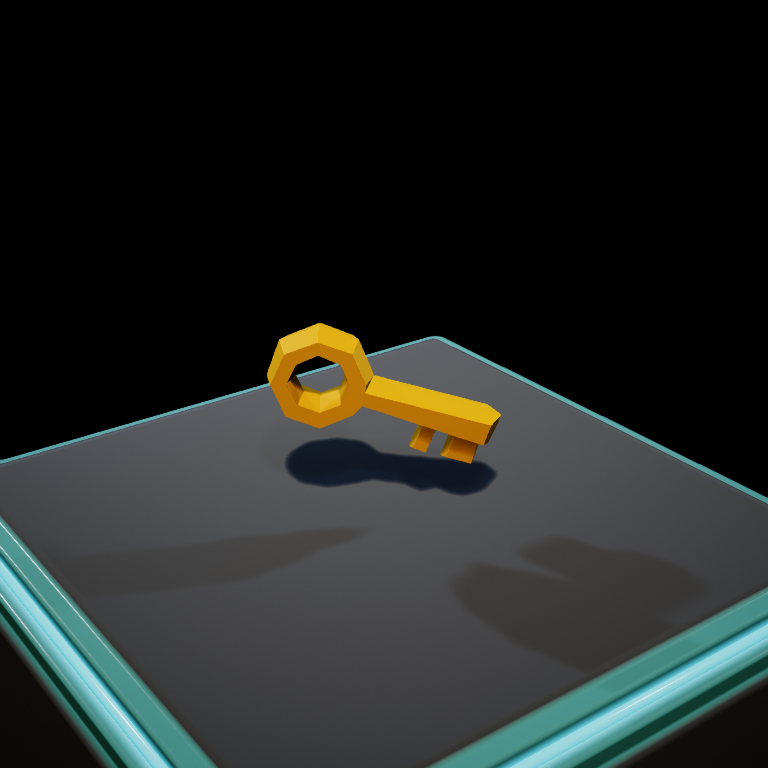
Collect all required keys to activate the finish. A level supports one to five required keys.
Editor settings: Select the cube face. No separate item direction or color setting.
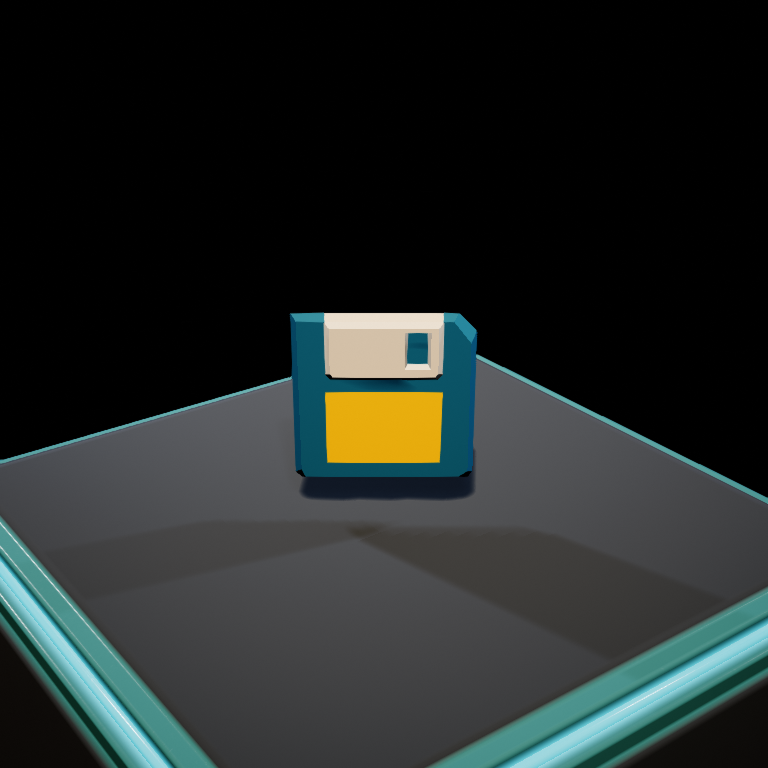
Collect all required fix disks to activate the apples. Fix disks and keys are separate objectives.
Editor settings: Select the cube face. No separate item direction or color setting.
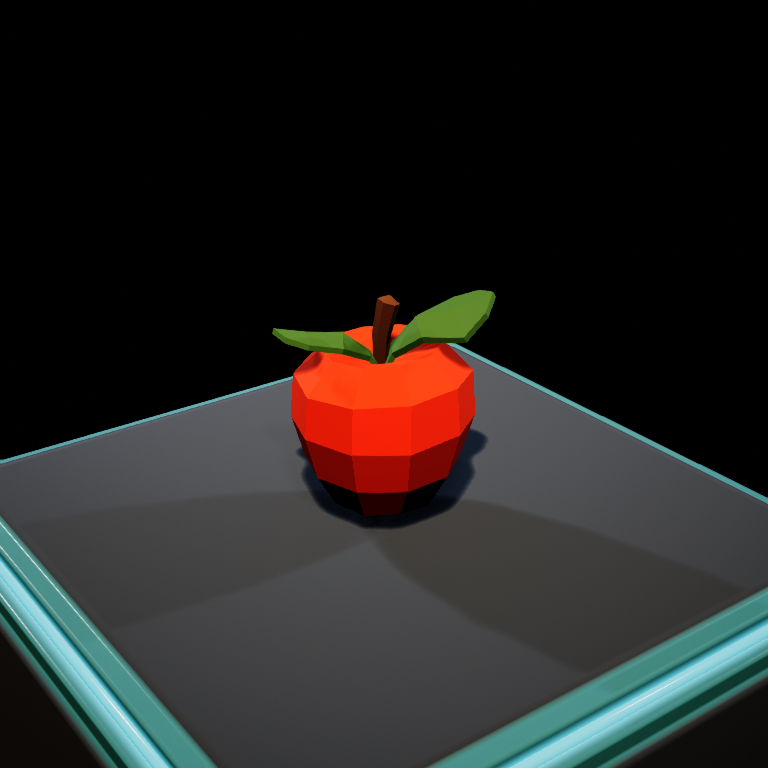
A score pickup. Apples activate after all required fix disks have been collected.
Editor settings: Select the cube face. No separate item direction or color setting.
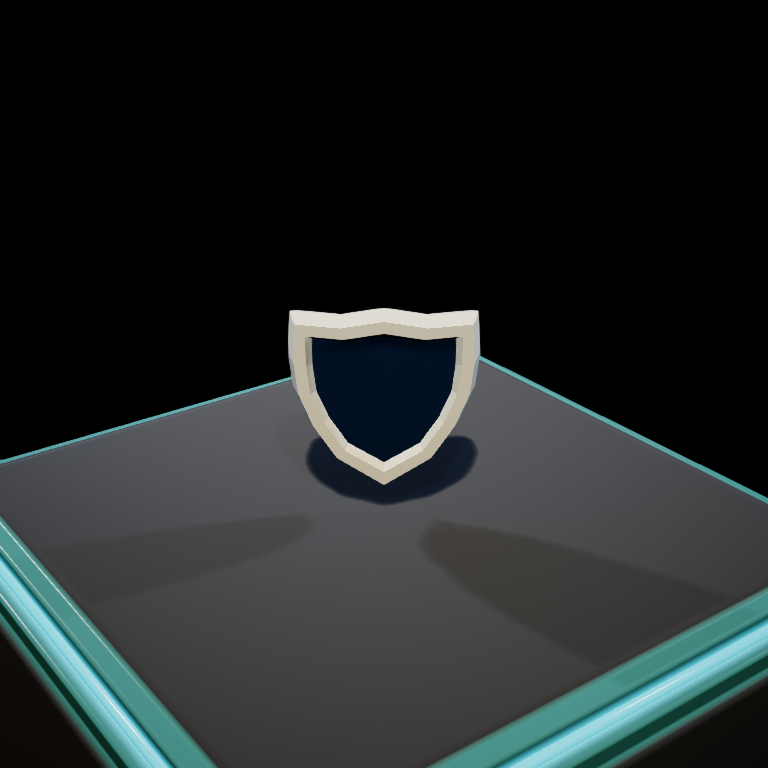
Adds seven seconds of shield protection. Further shield pickups add to the remaining duration. Protects against spikes, hostile contact and corruption.
Editor settings: Select the cube face. No separate item direction or color setting.
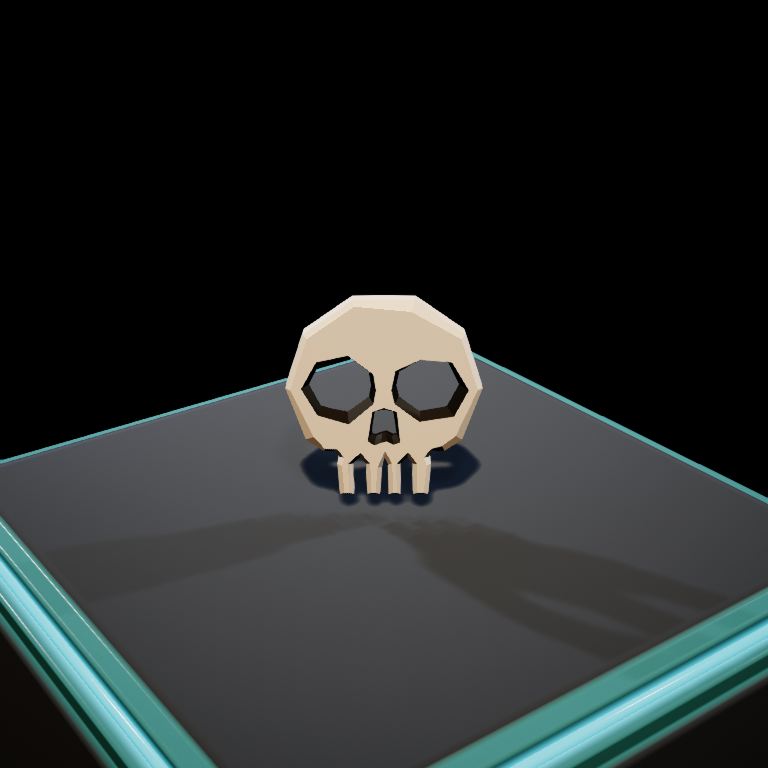
Adds 5,000 points while shielded; otherwise removes 5,000 points, down to a minimum score of zero. The 2× multiplier applies. It does not directly kill the player.
Editor settings: Select the cube face. No separate item direction or color setting.
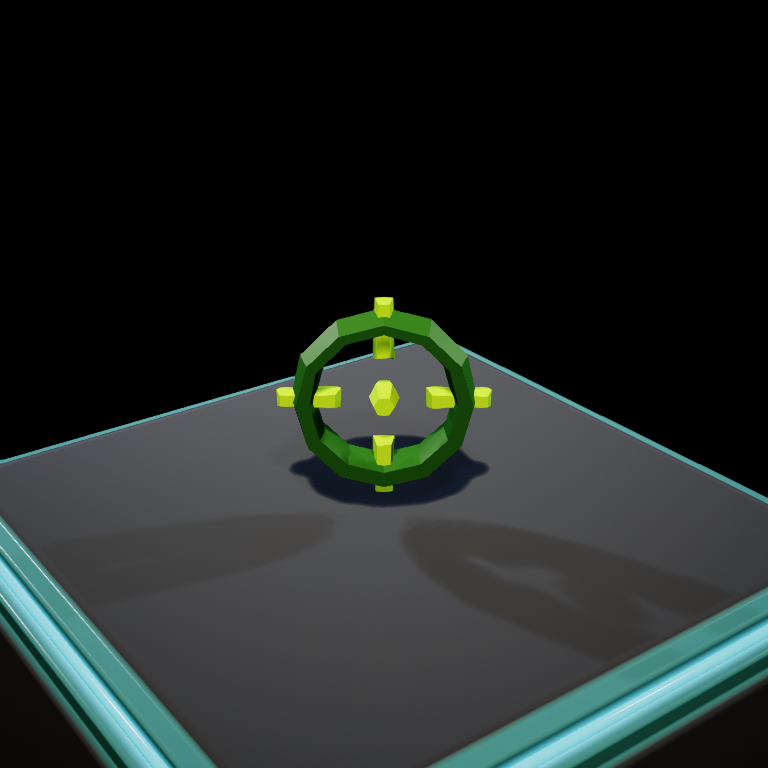
Adds seven seconds of attack ability. Further attack pickups add to the remaining duration.
Editor settings: Select the cube face. No separate item direction or color setting.
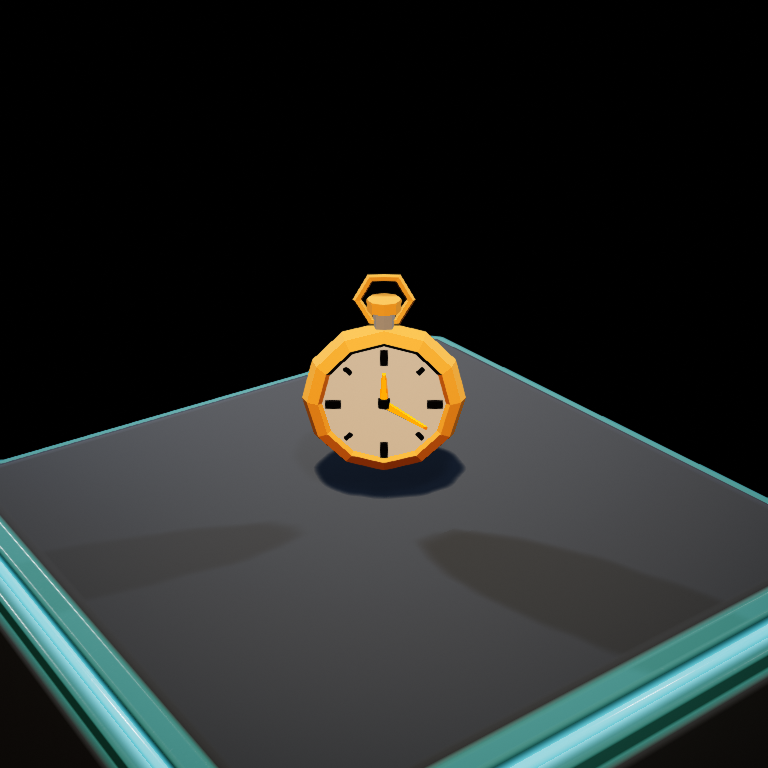
Pauses the level timer for seven seconds. Further stopwatch pickups add to the remaining pause.
Editor settings: Select the cube face. No separate item direction or color setting.
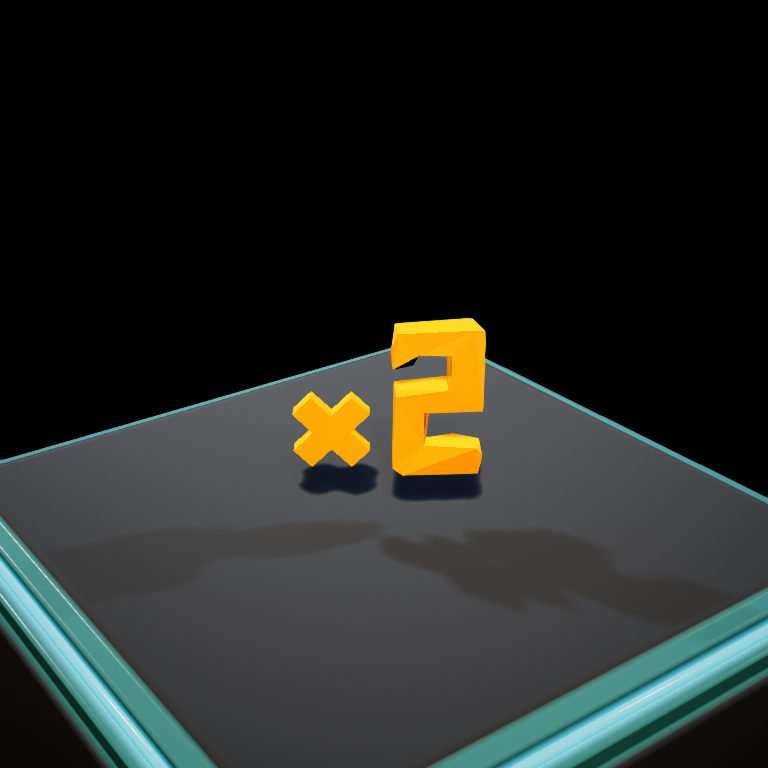
Doubles score awards during its timed effect. Adds seven seconds; further 2× pickups add to the remaining duration.
Editor settings: Select the cube face. No separate item direction or color setting.
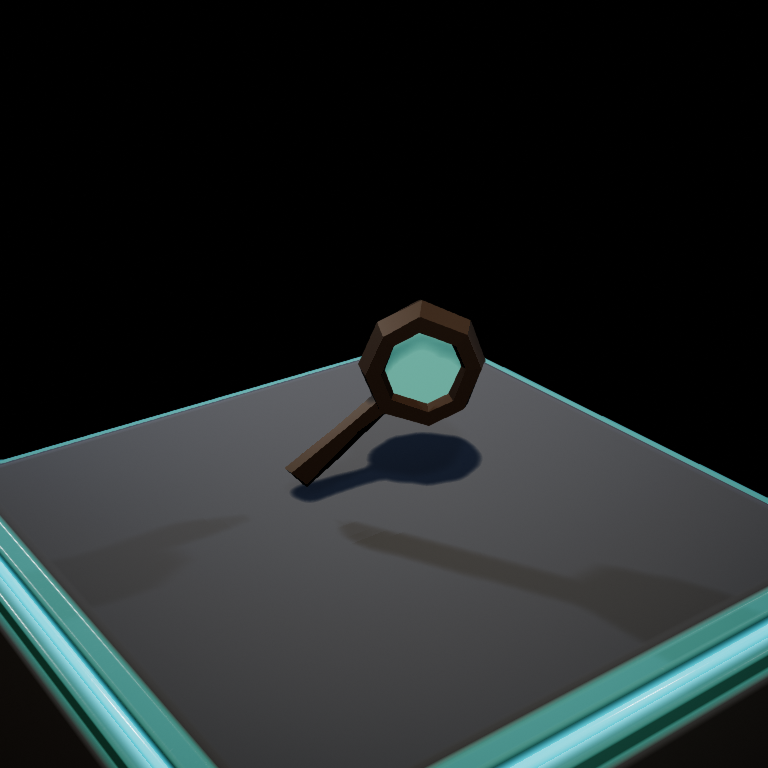
Reveals invisible cubes.
Editor settings: Select the cube face. No separate item direction or color setting.
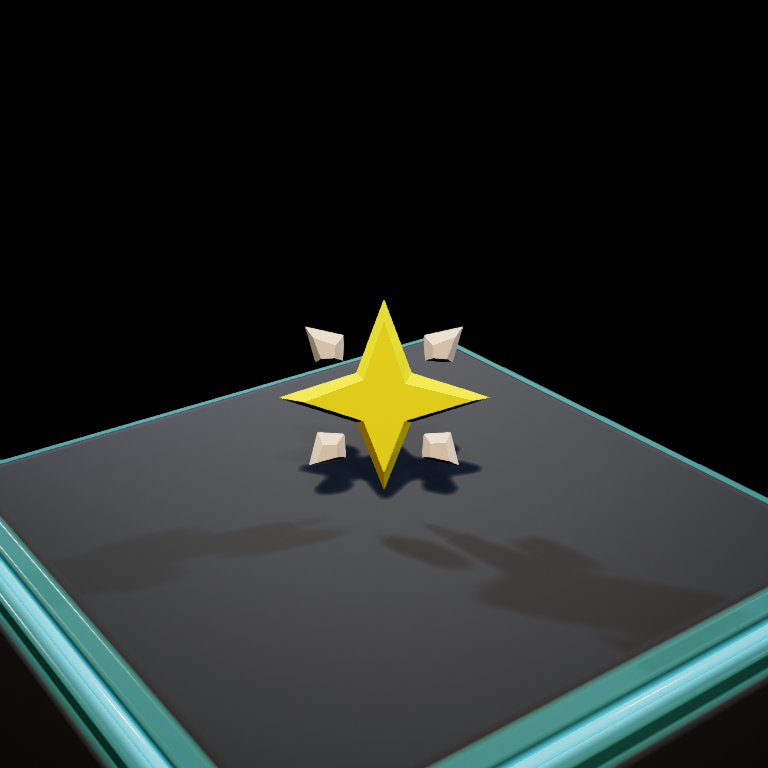
Permanently removes corruption fields and clears their corruption from affected objects.
Editor settings: Select the cube face. No separate item direction or color setting.
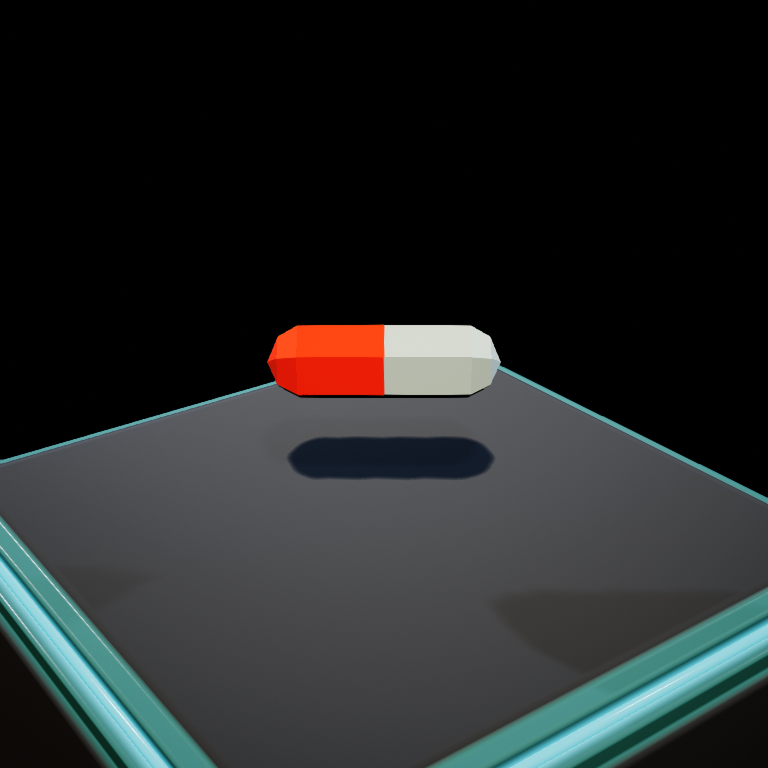
Slows the player to half speed through player time dilation. Adds seven seconds to the timed effect when it applies. A shield prevents the slowdown effect.
Editor settings: Select the cube face. No separate item direction or color setting.
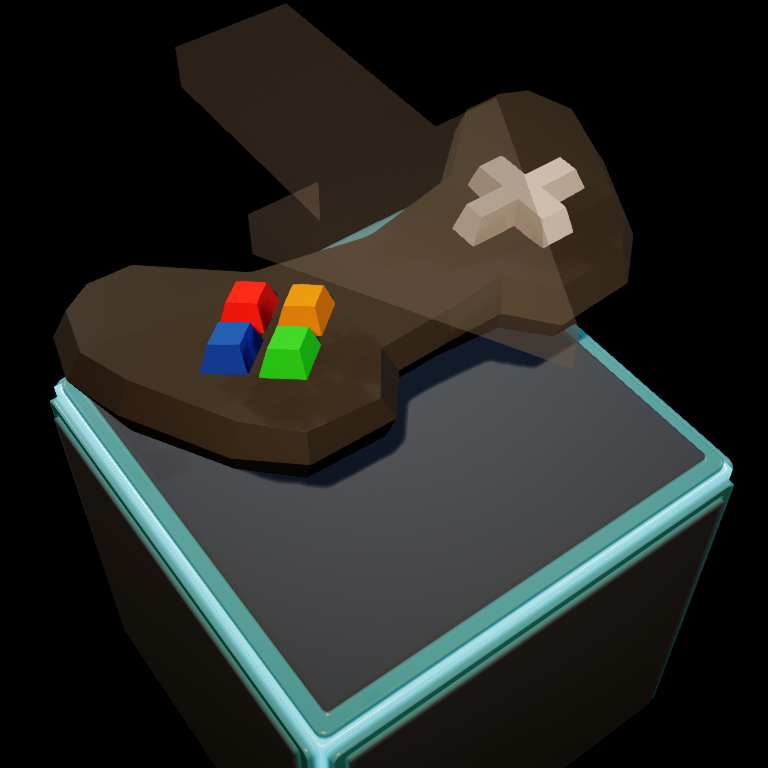
Sets the player’s starting position and facing direction.
Editor settings: Direction: four facing directions on the selected face.
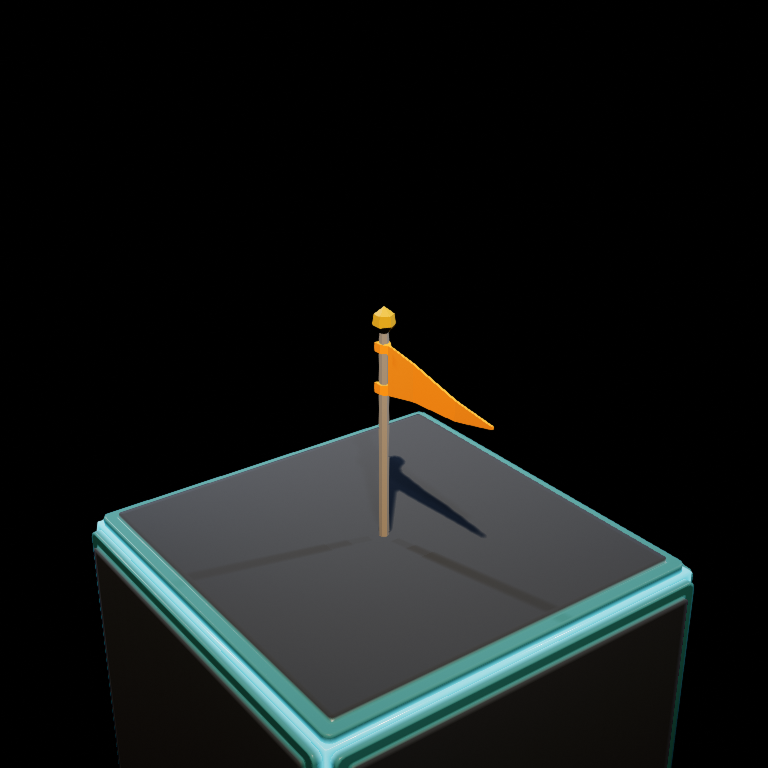
The exit, pictured in its active state. It activates after all required keys have been collected. A corrupted finish also requires protection or cleanup.
Editor settings: Select the cube face. No separate direction or color setting.
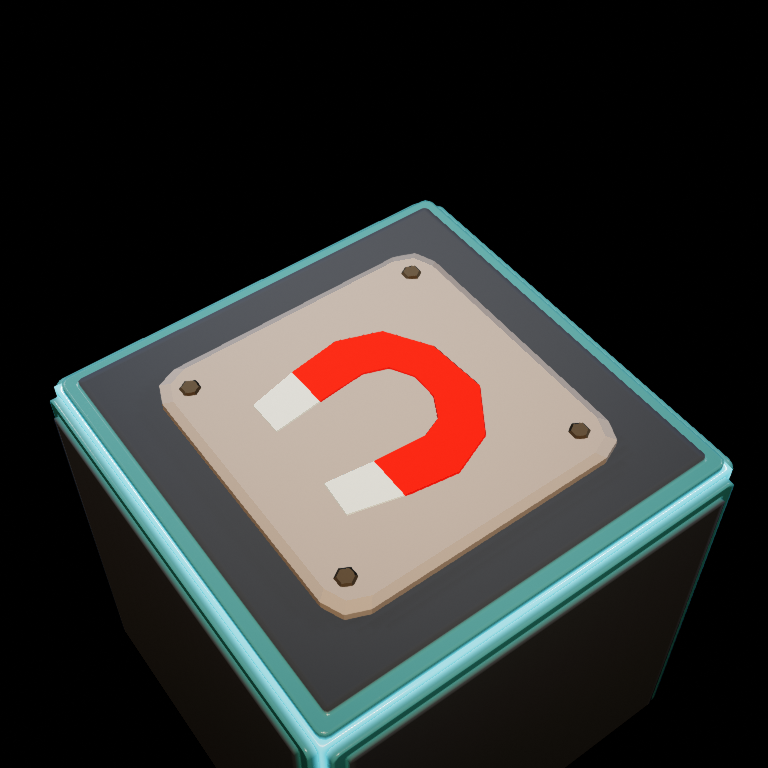
Catches the player through magnetic contact; it can support transfers between gravity surfaces.
Editor settings: Direction: selectable on the cube face. Check the preview orientation.
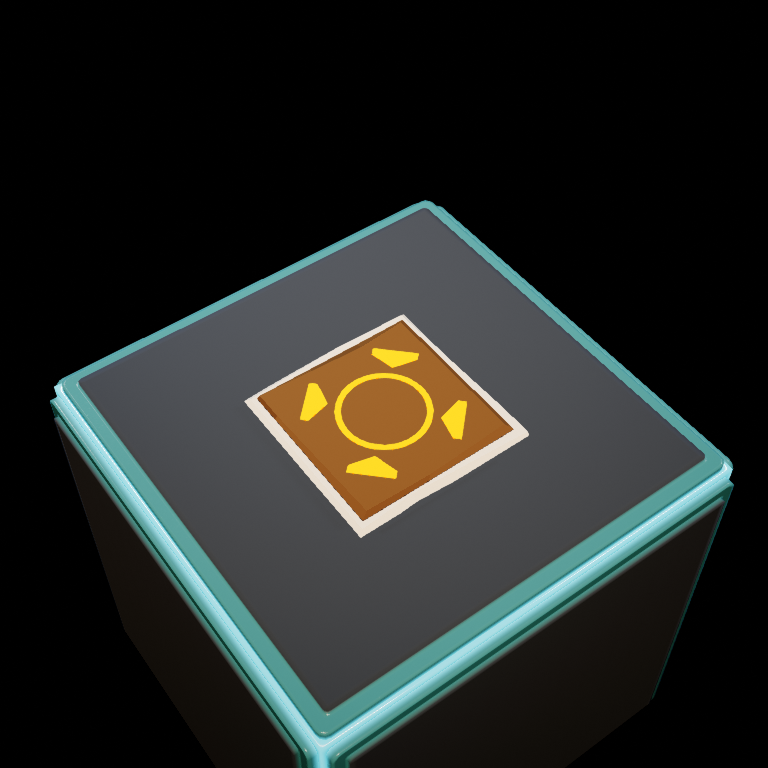
Activates a large jump away from the mounted face. Reactivates after a two-second delay and after the player has left its trigger.
Editor settings: Select the cube face to set the outward jump axis. No separate directional-arrow setting.
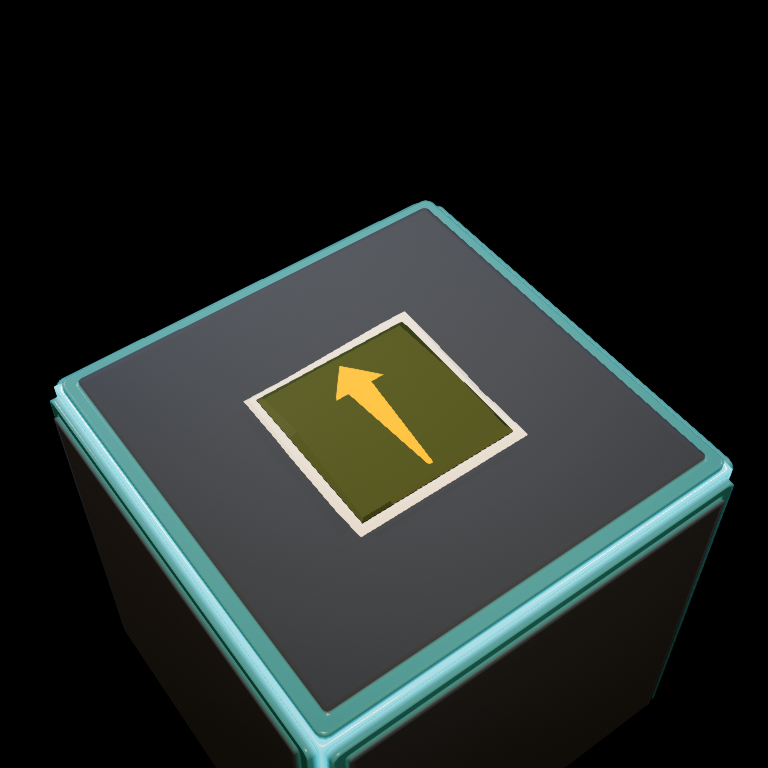
Launches the player in the arrow’s selected direction.
Editor settings: Direction: four arrow directions on the selected cube face.
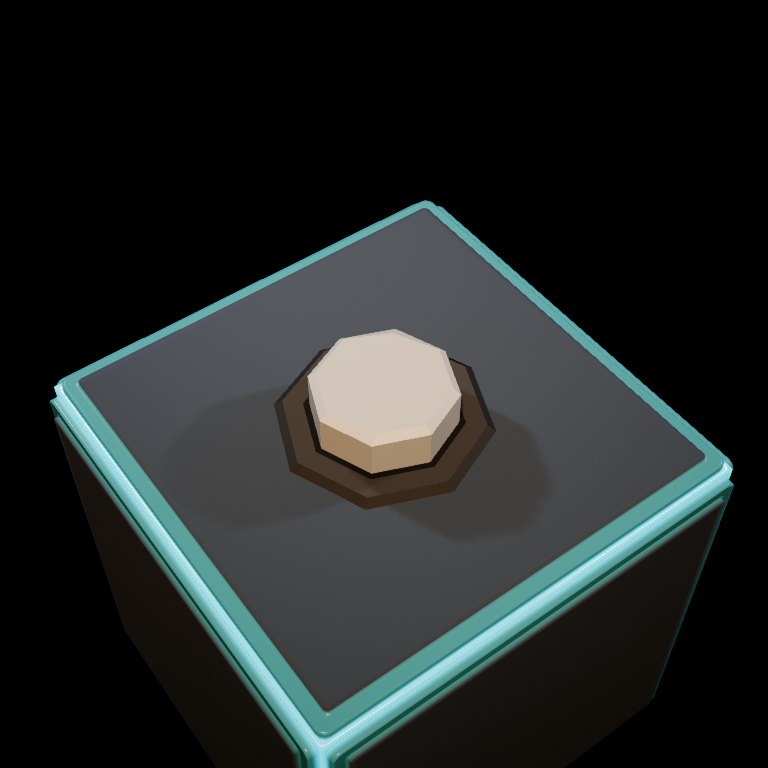
Changes matching phase cubes when activated.
Editor settings: Color: four switch channels. Match the switch’s channel color to its target phase cubes.
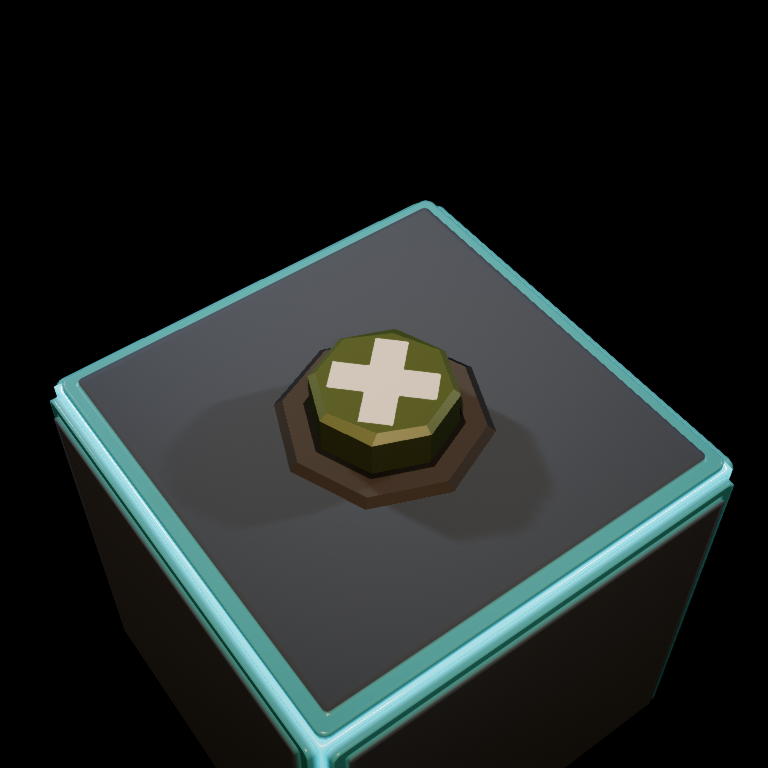
Destroys cubes assigned to the matching destruction channel.
Editor settings: Color: four switch channels. Match the switch’s channel color to its target destructible cubes.
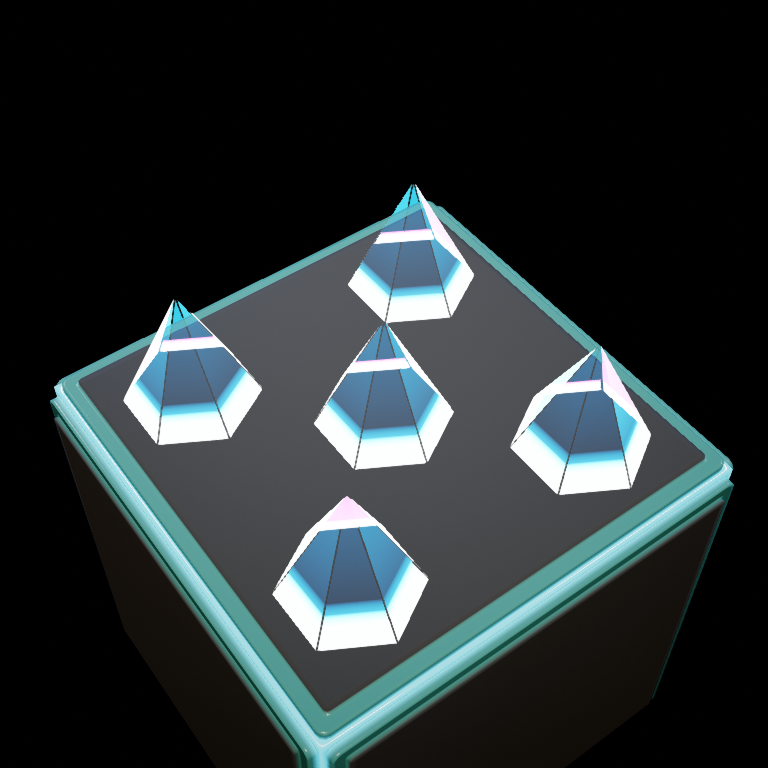
Contact kills an unshielded player. Shield protection allows contact.
Editor settings: Select the cube face. No separate direction or color setting.
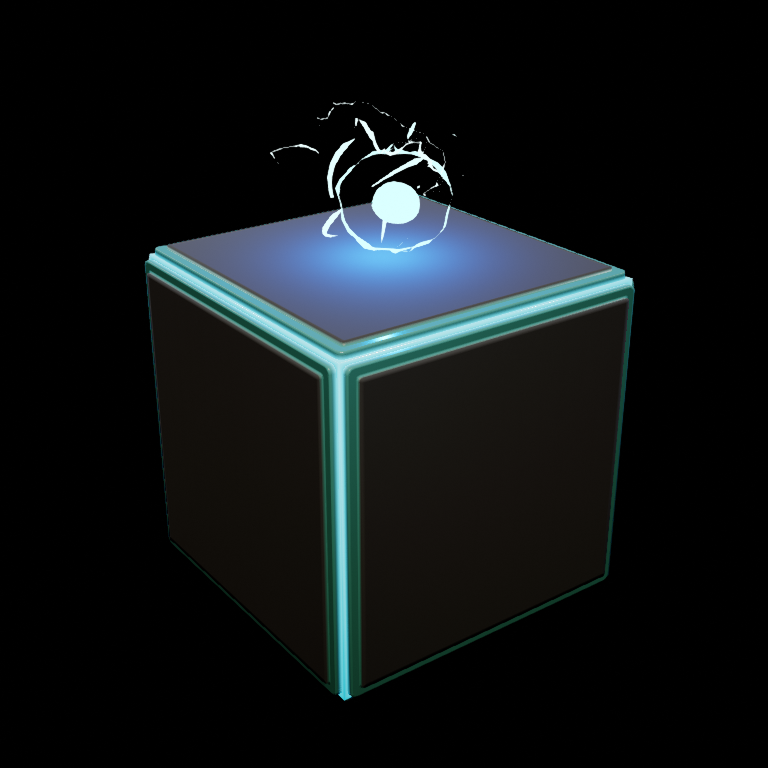
Unshielded contact kills the player. Shielded contact destroys it for score.
Editor settings: Select the cube face. No separate direction or color setting.
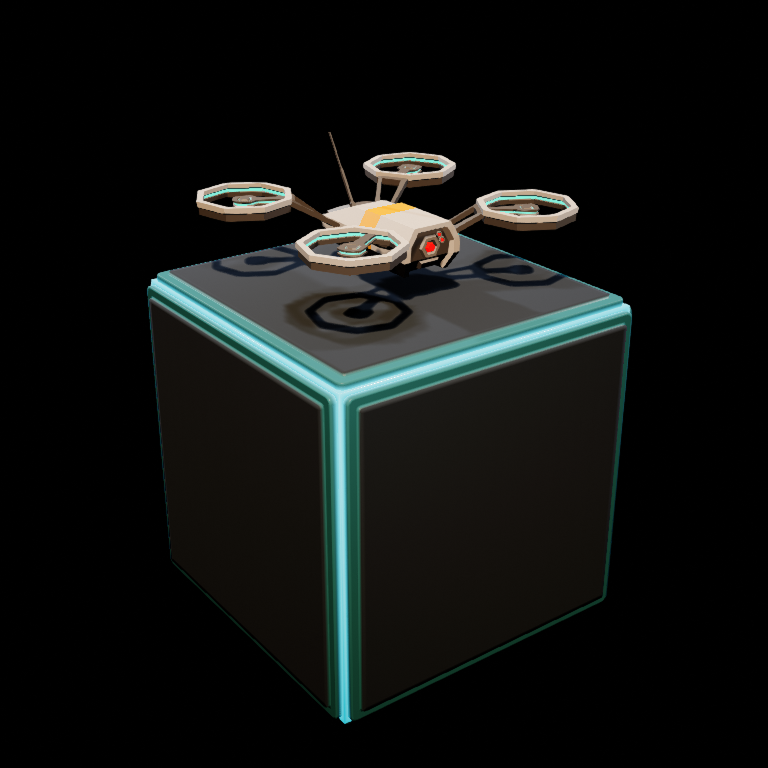
A hovering enemy. Unshielded contact kills the player; shielded contact destroys it for score.
Editor settings: Select the cube face. No separate direction or color setting.
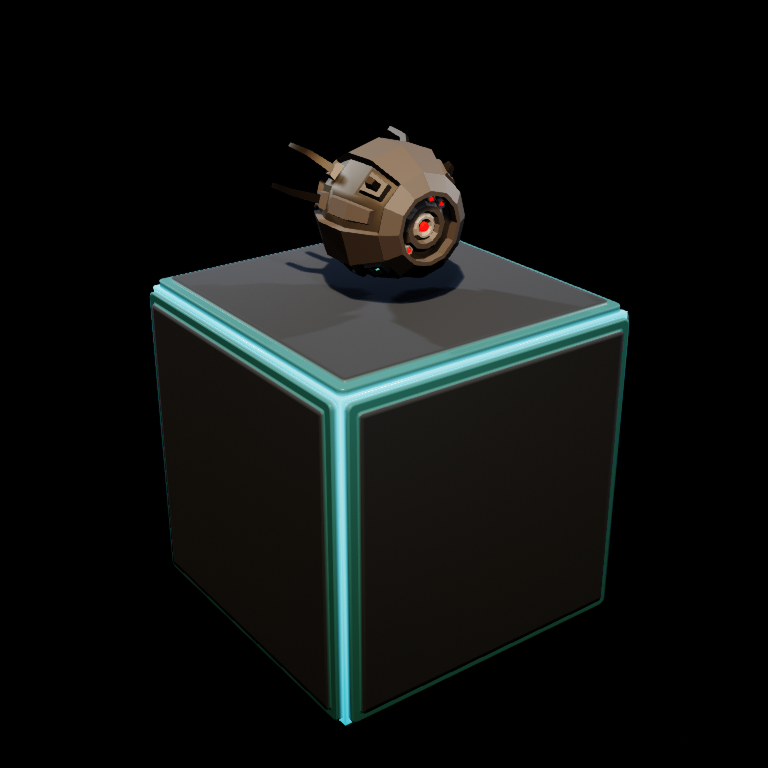
A round hovering enemy. Unshielded contact kills the player; shielded contact destroys it for score.
Editor settings: Select the cube face. No separate direction or color setting.
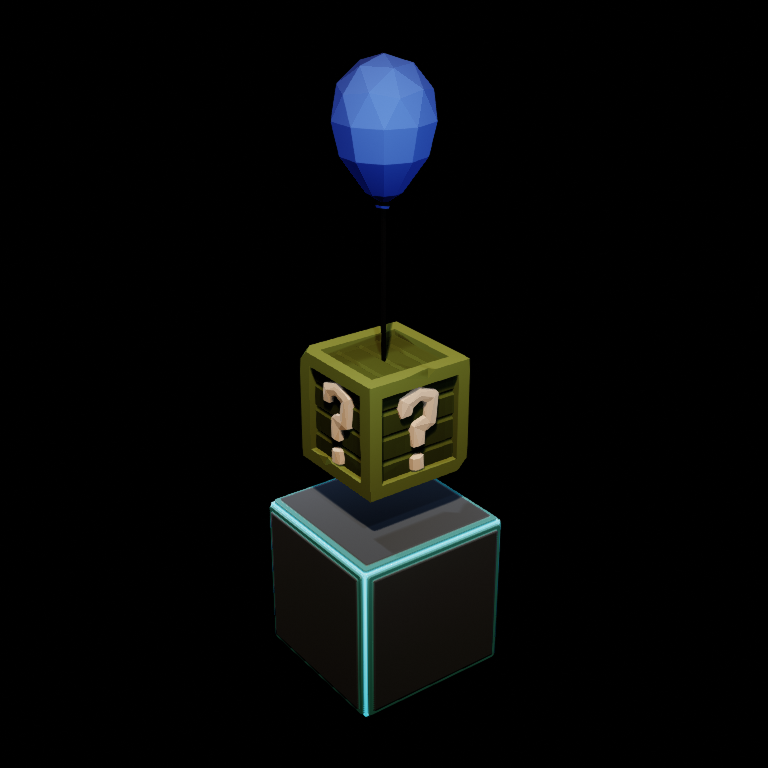
A question-mark crate suspended from a balloon. Contact or attack destroys it for score.
Editor settings: Color: change the question crate’s color. Balloon color: select the balloon palette separately.
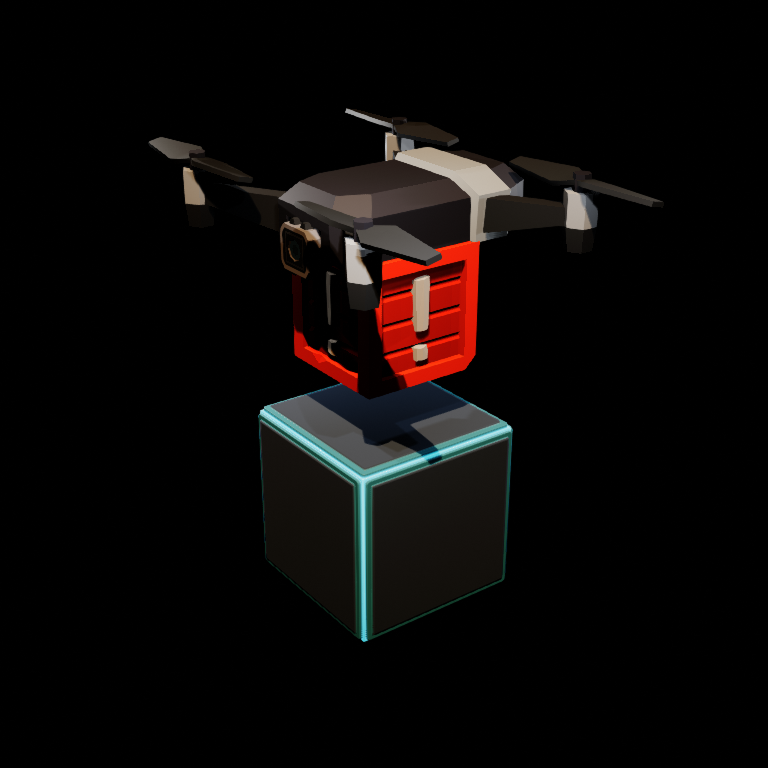
A red exclamation-mark crate carried by a drone. Unshielded contact kills the player; shielded contact or attack destroys it for score.
Editor settings: The crate is always the red exclamation-mark version; its color and crate style are fixed.
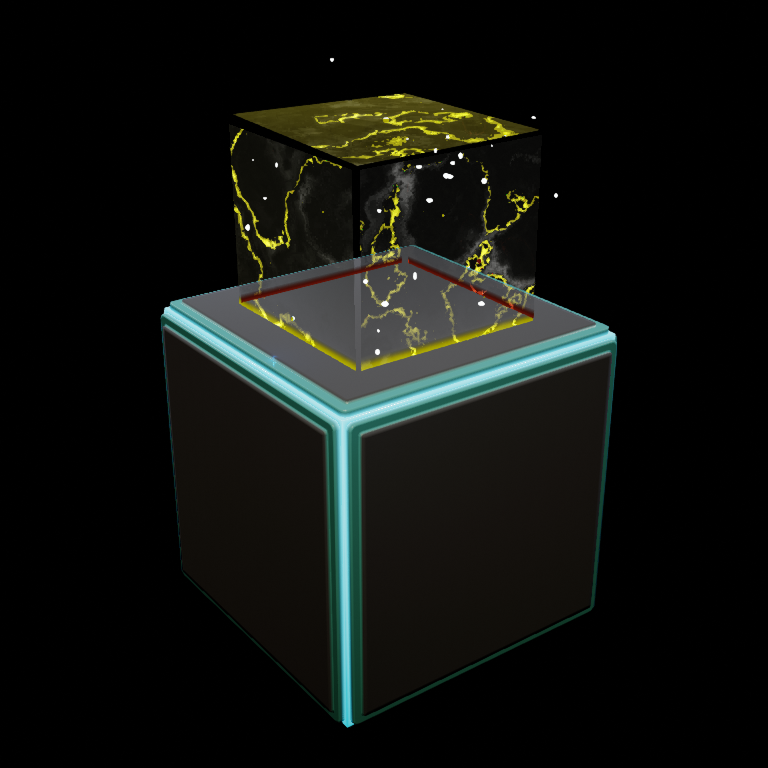
A face field that kills an unshielded player and corrupts overlapping items. Shield allows protected interaction; cleaner permanently removes the field.
Editor settings: Toggle independently of the face item with Space. It can share a face with an item.
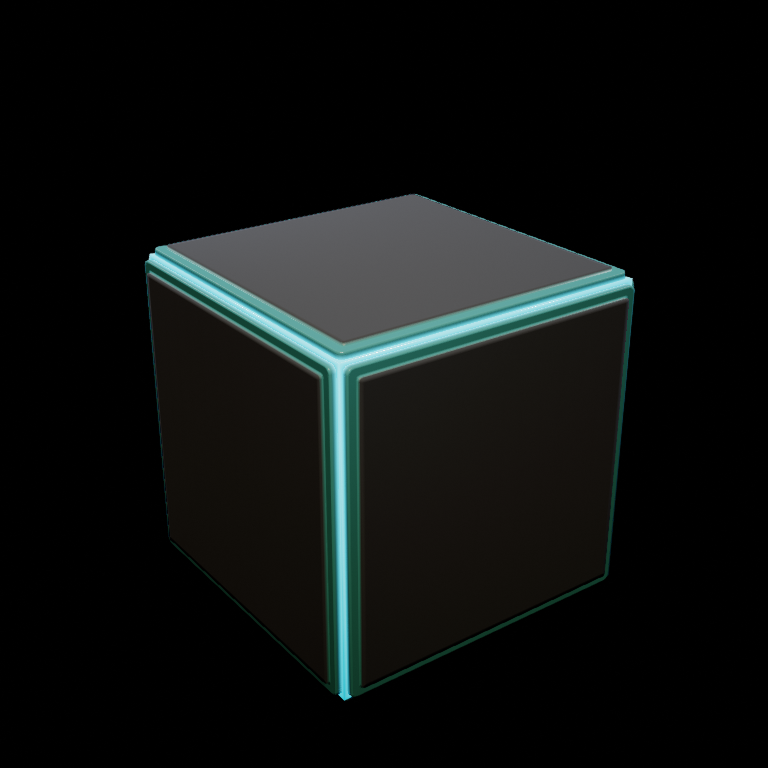
The main block used for cube-face surfaces.
Editor settings: Appearance: base, trim, glow and groove colors, including color animation. Open the color menu with C.
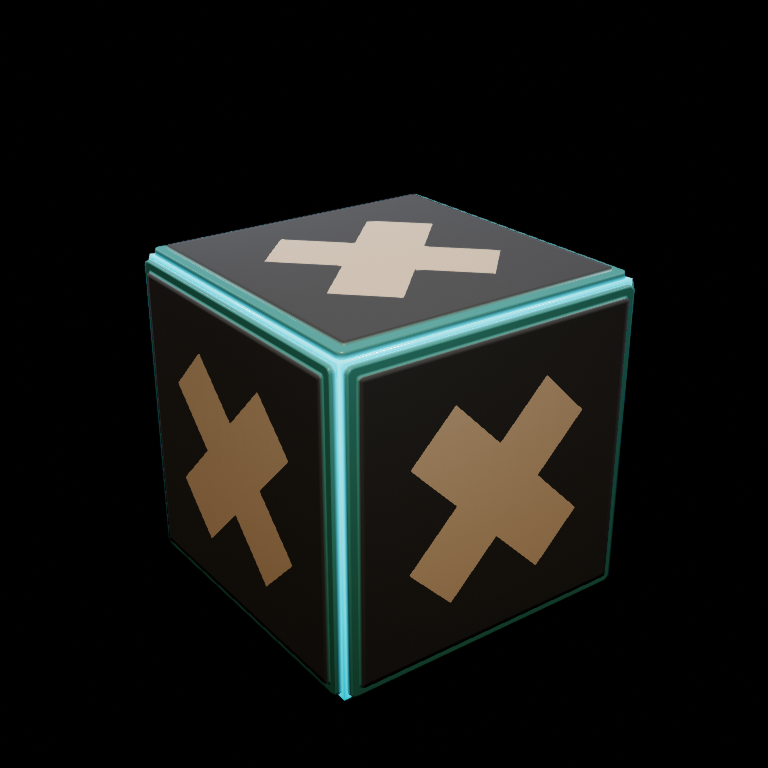
A block removed by a matching destruction switch.
Editor settings: Color: four destruction channels, separate from decorative surface colors. Appearance: C opens the cube color menu.
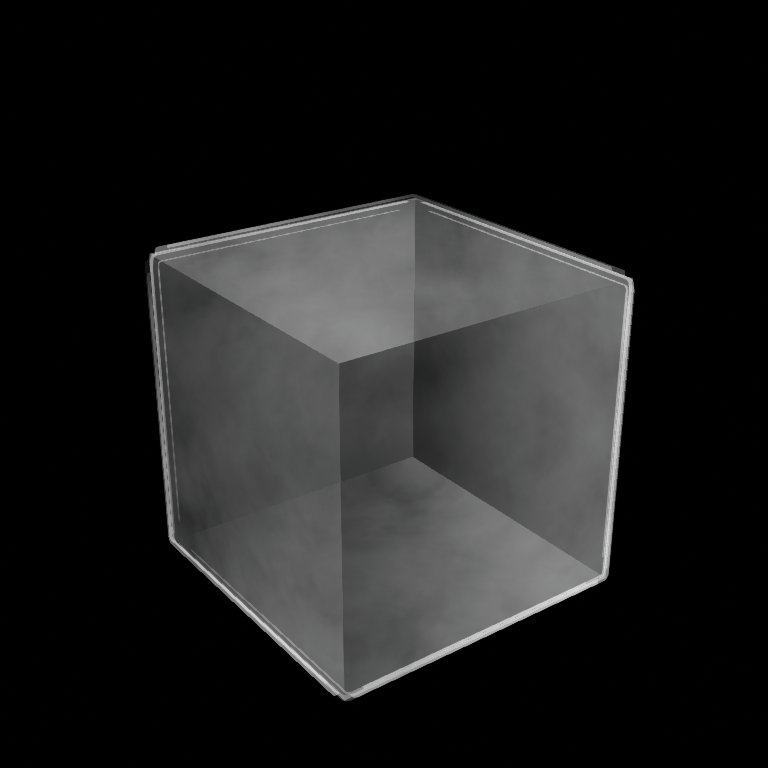
A block controlled by a matching phase switch.
Editor settings: Color: four phase channels, separate from decorative surface colors. Appearance: C opens the cube color menu.
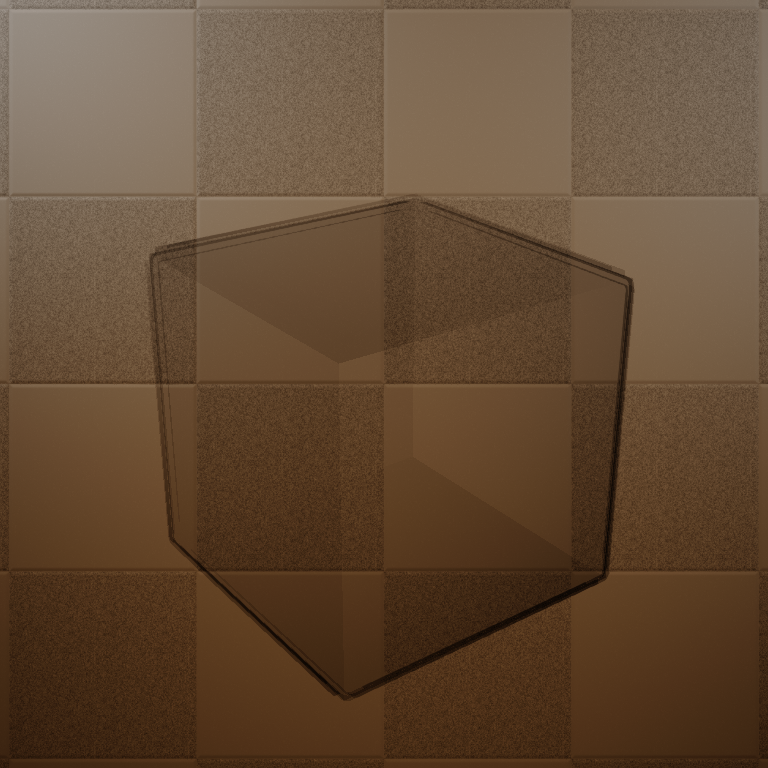
A hidden block revealed by the magnifying-glass pickup.
Editor settings: Visibility is controlled by the reveal pickup.
No matching items. Try another name or category.
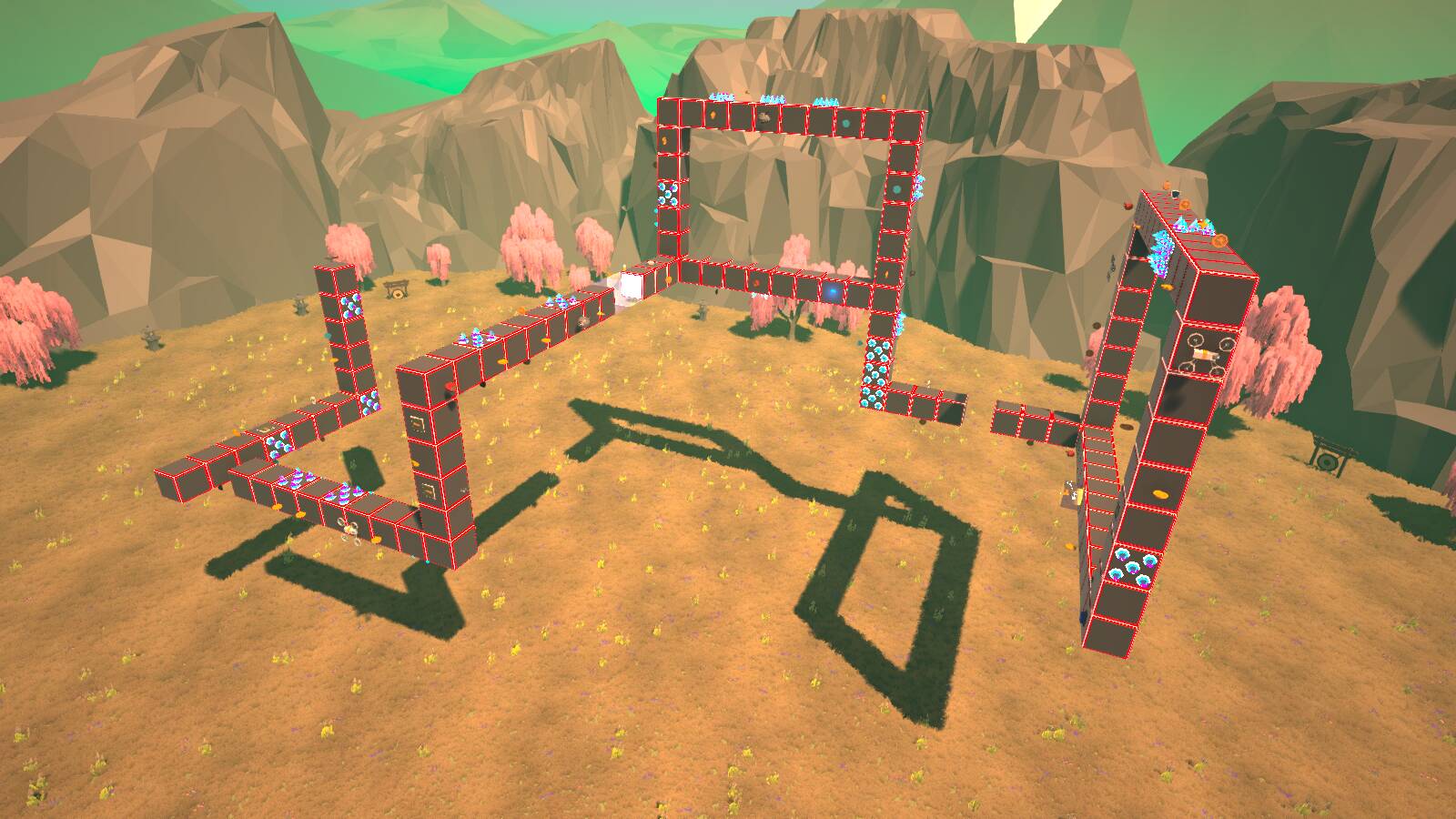
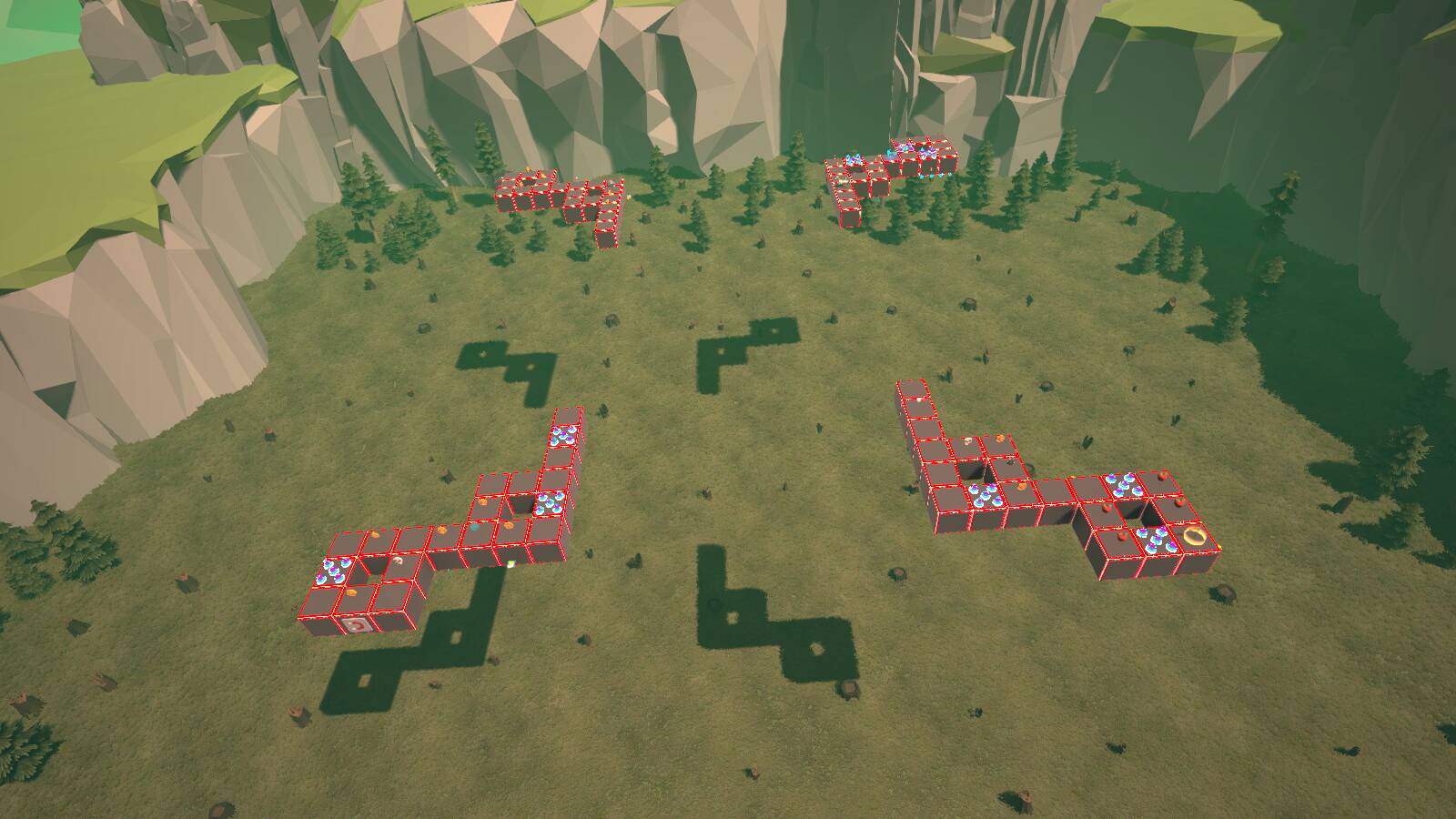
Existing Gravity Breach level previews.